
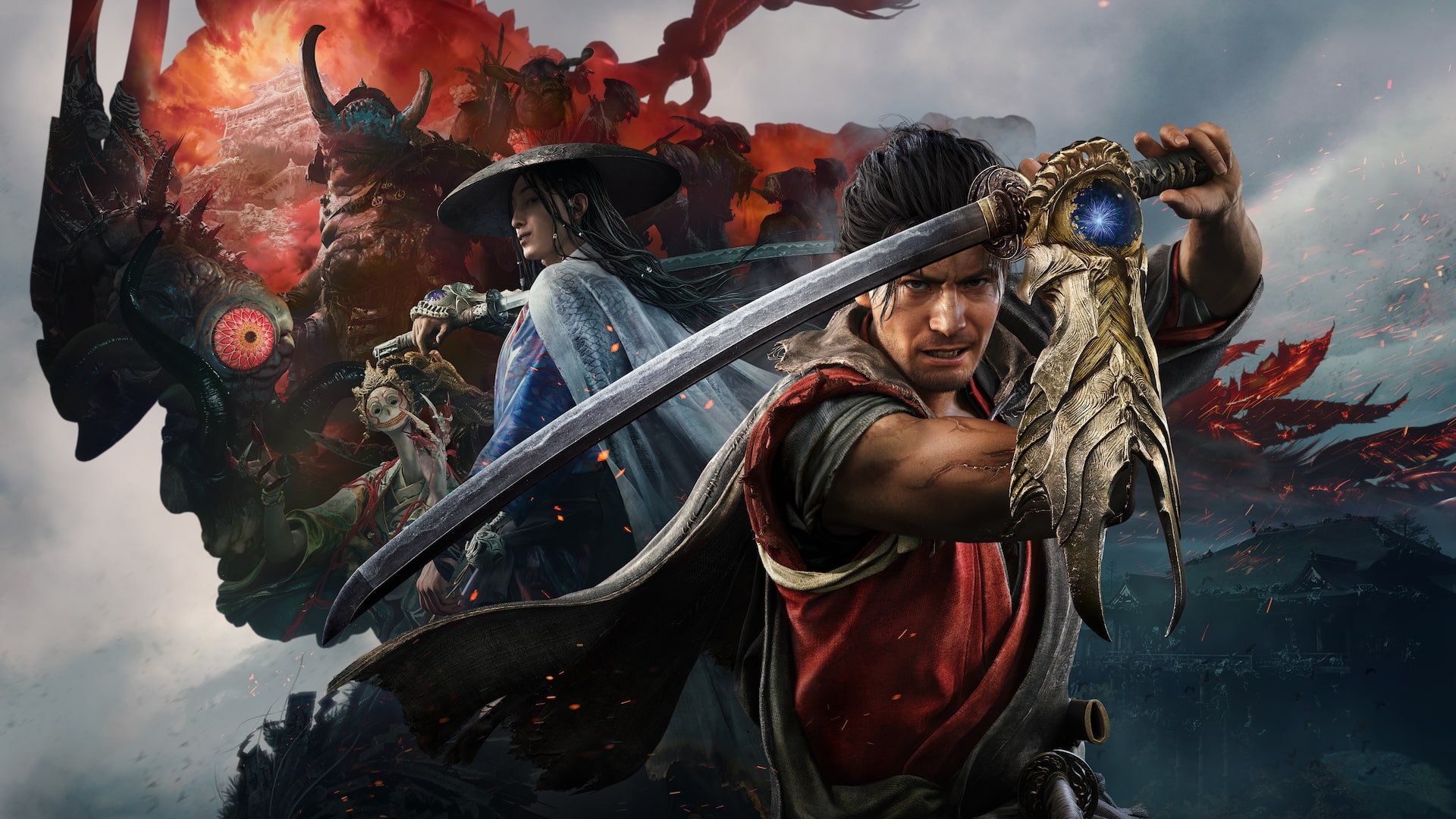
Onimusha: Way of the Sword PC Settings and Troubleshooting
Work through the official order: system requirements, graphics driver versions, antivirus exclusions, cutscene playback and controller problems.
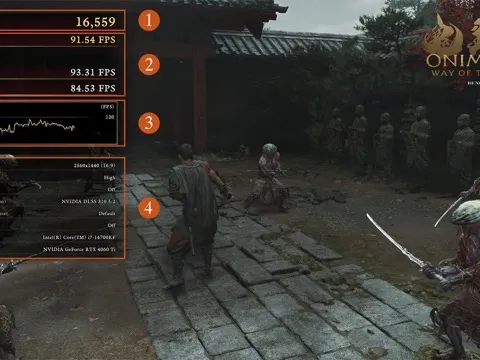
Do these three things first
Will not launch, crashing, wrong frame rate? Start in the official order: check your specs, add the game folder to your antivirus and firewall exclusions, then update your graphics driver.
Capcom Customer Service Center posted that order in a pinned Steam thread on 2026-09-03. It runs to eight steps. Below they are laid out with the requirements table.
Official system requirements
| Item | Minimum | Recommended |
|---|---|---|
| OS | Windows 11 (64-bit) | Windows 11 (64-bit) |
| CPU | Intel Core i5-8400 / AMD Ryzen 3 3100 | Intel Core i5-10400 / AMD Ryzen 5 3600 |
| Memory | 16 GB | 16 GB |
| GPU | GeForce GTX 1660 6GB / Radeon RX 5500 XT 8GB | GeForce RTX 2060 Super 8GB / Radeon RX 6600 8GB |
| DirectX | 12 | 12 |
| Storage | 50 GB, SSD required | 50 GB, SSD required |
| Target | 1080p, Low preset, 30 FPS (with upscaling) | 1080p, Medium preset, 60 FPS (with upscaling) |
Official notes: upscaling is handled by NVIDIA DLSS or AMD’s equivalent, frame rate can dip under heavy load, and the requirements may change without notice.
The eight official steps
- Check your specs. Below minimum, stutter or a failed launch is an expected result. At minimum but below recommended, lower the graphics settings first. Capcom does not warrant mobile GPUs, external GPUs or Windows Insider builds.
- Add exclusions. Security software can block the game and cause a failed launch or frame drops. Add
OnimushaWotS.exe,Steam.exeand Steam’s AppData folder to your antivirus and firewall exclusions. If they are already listed, remove and add them again. - Run as administrator. Right-click Steam.exe and pick Run as administrator. If that fails, do the same for the game executable.
- Update your GPU driver and Windows. NVIDIA needs 596.49 or later; AMD needs 26.5.1 or later. Reboot after installing. If problems persist, try another driver version in the supported range, or use DDU for a clean install and then reinstall the latest driver and DirectX.
- Check driver settings. Laptops with dual GPUs may be using integrated graphics. Go to Windows Settings > System > Display > Graphics settings and set the game to High performance. Resetting the driver settings is also worth a try.
- Check power settings. Plug the laptop in, set the power plan to High performance in Control Panel, then launch the game. On USB-C charging, make sure the cable supports power delivery.
- Install the media codecs. Some cutscenes play through Windows Media Player codecs. If cutscenes will not play, install Microsoft’s Media Feature Pack; Windows N and KN editions do not ship it.
- Verify the game files. Verifying integrity in Steam replaces missing or damaged files. It is worth running even right after installation.
What players keep hitting
After launch, the community repeatedly reports crashes, washed-out brightness or missing shadows, and controllers that are not recognised. These are environment-specific, and both the official thread and the Steam discussions are places to report them.
For a crash or a graphics oddity, note your GPU model, driver version, graphics preset and the exact moment it happened before working through the eight steps. That saves more time than reinstalling.
Limits
This page does not promise specific frame rates and does not offer third-party “optimiser” downloads. Driver versions and requirements can change with updates, so check official announcements and the store page.
Sources
Capcom Customer Service Center’s official Steam troubleshooting thread (2026-09-03) and the system requirements on the Steam store page. Community reports are labelled as player accounts, not official findings.
Related articles
characters
Onimusha: Way of the Sword Characters
Meet Musashi, Oni Lady, Ono no Takamura, Izumo no Okuni and the foes listed in CAPCOM's official character material.
characters
Onimusha: Way of the Sword Main Character: Miyamoto Musashi
The main character is Miyamoto Musashi. This page covers his past, the Oni Gauntlet, his face model Toshiro Mifune and the age CAPCOM never confirmed.
characters
Onimusha: Way of the Sword Voice Actors
Check the official Japanese, English and Simplified Chinese voice cast, and understand why Toshiro Mifune is credited for Musashi's likeness.